- When a Proctorio quiz or exam contains a file for students to download, please follow this guide to change the way the file download behaves.
- Failure to make this change may result in students being unexpectedly removed from the quiz or exam.
- The file will still be downloaded, and the student can re-enter the exam, but the experience can be confusing and concerning to students.
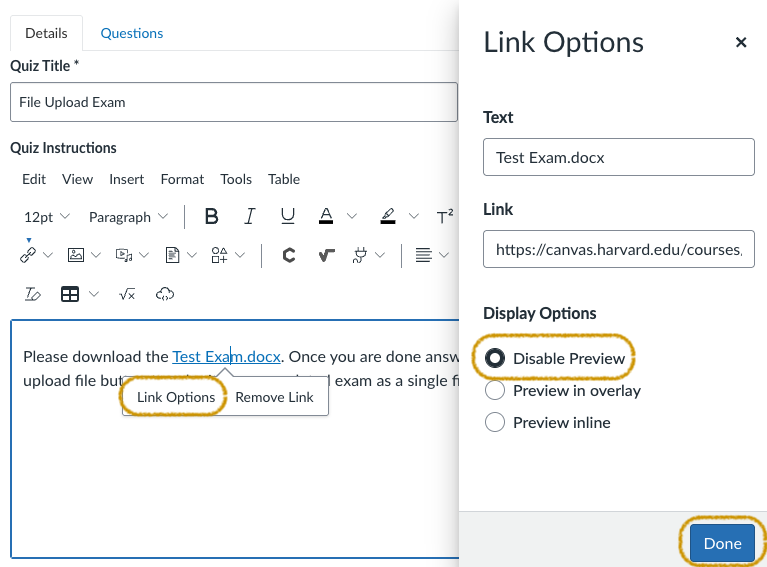
- When you upload your file to your Canvas quiz or exam, the file title will blink yellow indicating the file link has been embedded in the page.
- Select the file title.
- From the pop-up menu, select Link Options.
- The Canvas Display Option defaults to Preview in overlay.
- From the slide out menu change the Display Option to Disable Preview.
- Select Done and continue editing your quiz or exam.
Instructor support
Email: InstructionalTechnology@dce.harvard.edu
Web: teach.dce.harvard.edu/itg
Emergencies: call the help desk at (617) 998-8571
Student support
Support for students is provided by Academic Technology
Email: AcademicTechnology@dce.Harvard.edu
Phone: (617) 998-8571
Resources: Canvas Student Support Guides & Tips